How to Shrink a GIF From 11 MB to 700 KB Without Visible Damage
A GIF that weighs 8 MB does not get watched; it gets closed. Mobile connections, email proxies, and forum upload caps all draw hard lines, and in 2026 the practical ceiling for a web GIF sits around 2 MB, with 1 MB as the target for anything sent by email. The good news: most oversized GIFs can lose 60–80 percent of their weight with no visible damage, because the defaults in popular tools are absurdly conservative.
Optimization happens at four levers: fewer pixels, fewer frames, fewer colors, and smarter compression. Work them in that order, because each lever downstream has less to fix.
Lever one: cut the dimensions first
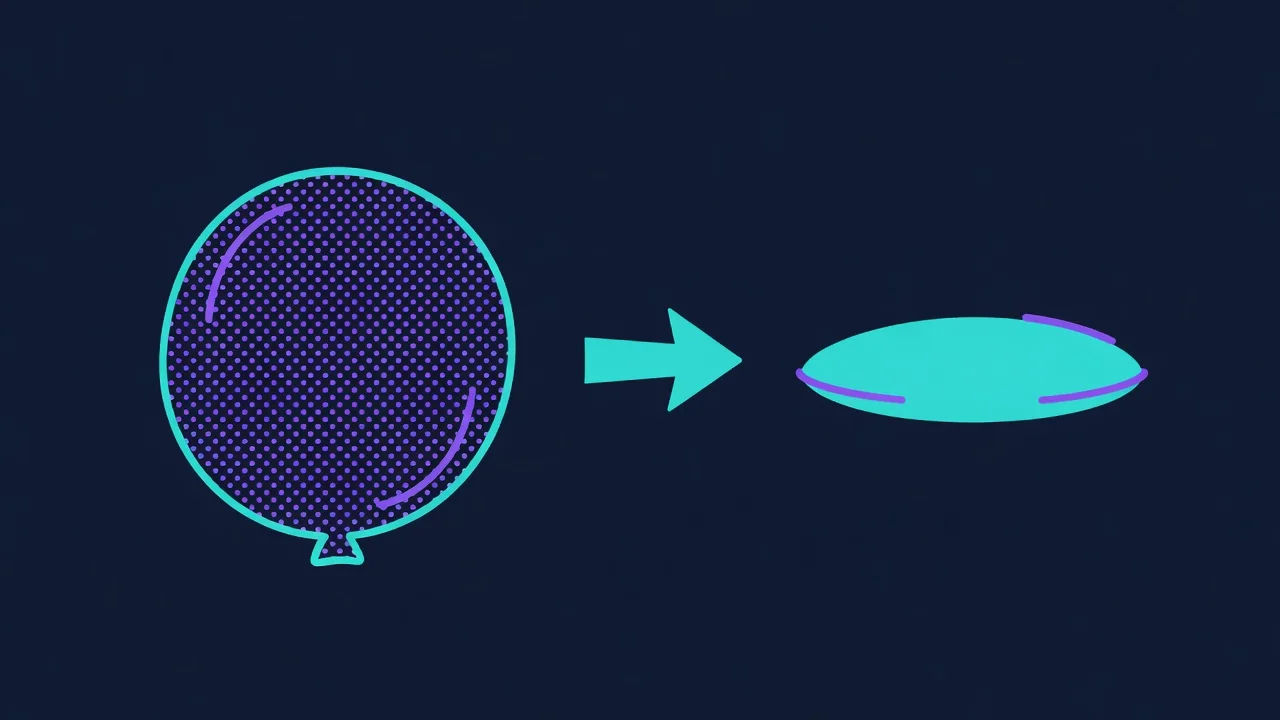
File size scales roughly with pixel count, so halving width and height quarters the data before anything else happens. Most GIFs display at 320–480 px wide in practice. If your source is 1080p, resize to the display size, not to something in between. A 1920 px GIF shrunk by the browser still costs the full download.
Lever two: drop frames, not smoothness
Video at 25–30 fps is overkill for loops. Halving the frame rate and doubling per-frame delay produces identical playback timing at half the frame count. For most content 12–15 fps reads as smooth; screen recordings of text can go to 8 fps. Tools like Ezgif's frame dropper and FFmpeg's fps filter do this in one step. Cutting dead time at the start and end of the loop often saves more than any compression pass.
Lever three: shrink the palette honestly
Every color you remove from a frame's 256-color table shrinks the LZW dictionary. Grayscale content needs 32 colors, not 256. Flat UI captures often survive at 64. The key is regenerating the palette from the actual frames rather than forcing a web-safe preset: gifsicle's --colors flag with an optimized palette, or Gifski's automatic palette builder, keeps skin tones and gradients intact at surprisingly low counts.
Lever four: lossy LZW and frame disposal
Gifsicle's --lossy=80 flag introduces controlled noise that makes LZW compress far better, typically saving 30–50 percent with artifacts invisible at normal viewing size. Combine it with proper frame disposal, where only changed rectangles are stored per frame, and a talking-head clip collapses because the static background is encoded once. FFmpeg's paletteuse filter with diff_mode=rectangle does the same job.
- Resize to final display width before any other step
- 15 fps for motion, 8–12 fps for UI captures
- Rebuild the palette from real frames, never web-safe defaults
- gifsicle -O3 --lossy=80 --colors 128 covers most cases
- Verify the loop seam after frame dropping, not before
| Step | Tool | Typical saving | Risk |
|---|---|---|---|
| Resize 1080→480 px | FFmpeg scale=lanczos | 70–85% | none if display size is final |
| 30→15 fps | FFmpeg fps filter | ~50% | choppy fast motion |
| 256→128 colors | gifsicle --colors | 10–25% | banding in gradients |
| Lossy LZW | gifsicle --lossy=80 | 30–50% | noise on flat areas at high settings |
| Rectangle disposal | FFmpeg diff_mode | 20–40% | ghosting if source has overlays |
A worked example
Start: 6-second product spin, 1080 px, 30 fps, 11.2 MB. Resize to 480 px: 2.9 MB. Drop to 15 fps: 1.5 MB. Palette at 128 colors: 1.2 MB. gifsicle -O3 --lossy=80: 720 KB. The loop looks identical on a phone screen and passes the 1 MB line for email. Total time with the commands above: about two minutes, most of it encoding.
When to stop optimizing and switch formats
If a clip still misses its budget after all four levers, the content is telling you something: full-frame photographic motion is what video codecs were built for. A muted MP4 or animated WebP of the same clip will be a fifth of the size at better quality. Keep GIF for what it does best, short loops with flat or limited color, and let the optimization article's sibling piece on format choice settle the rest.